

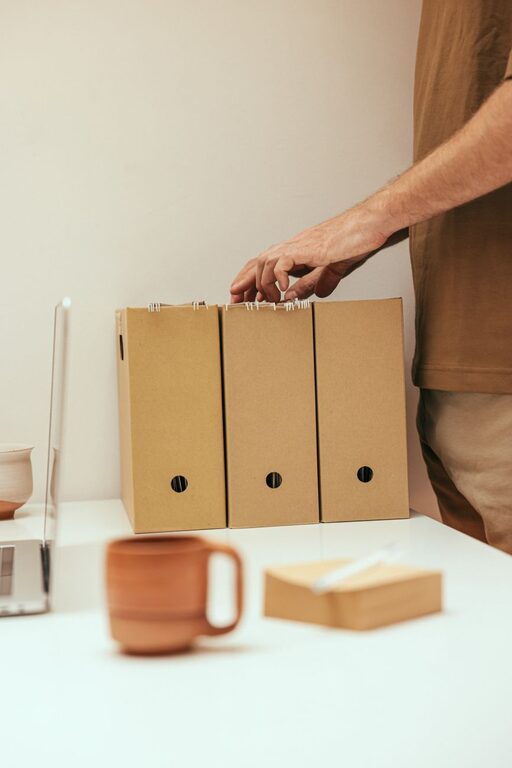
Keeping your computer files organized can save you time, reduce stress, and increase your productivity. Whether you use your computer for work, school, or personal projects, having a clear system to manage your files is essential. This guide offers practical tips to help you organize your files efficiently and maintain a tidy digital workspace.
Why Organize Your Files?
When files are scattered or randomly named, finding what you need can become frustrating and time-consuming. Organized files make it easier to locate documents quickly, back up important data, and avoid accidental deletions. Plus, a clean desktop and folder structure can boost your computer’s performance and your own peace of mind.
Start With a Plan
Before you start moving files around or creating folders, take a moment to plan your organization system. Consider:
– What types of files do you have (documents, photos, videos, work files)?
– How often do you access different files?
– Do you need to share files with others?
– How long do you need to keep certain files?
Having answers to these questions will help you design a system tailored to your needs.
Create a Logical Folder Structure
A clear folder structure is the foundation of good file organization. Here are ways to create one:
Use Broad, Meaningful Categories
Start by creating main folders based on broad categories relevant to you, such as:
– Work
– Personal
– Photos
– Finances
– School
Break Down Into Subfolders
Within each main folder, create subfolders to narrow down the content. For example, inside “Work,” you might have:
– Projects
– Reports
– Meeting Notes
– Presentations
Avoid Over-Nesting
Try to limit how deep your folders go. Too many levels can make files harder to find. Aim for three to four levels at most.
Keep Folder Names Simple and Consistent
Use clear and consistent naming that makes sense to you. Avoid spaces or special characters if possible, as some programs prefer simple names.
Name Files Effectively
File names play a big role in finding your documents quickly.
– Be descriptive: Use names that describe the content, like “Budget_2024_Q1.xlsx” instead of “Document1.xlsx.”
– Include dates: Adding dates in a consistent format (e.g., YYYY-MM-DD) helps sort files chronologically.
– Use underscores or dashes: These can replace spaces to keep names readable and compatible.
– Avoid vague names: Skip generic names like “file” or “new” that don’t tell you much.
Use Tags and Favorites (If Available)
Many operating systems and applications let you tag files with keywords or mark favorites.
– Tags make it easy to group related files even if they’re in different folders.
– Favorites or shortcuts help you access frequently used files quickly.
Explore whether your system supports these features and use them to your advantage.
Regularly Clean Up Your Files
File organization is not a one-time task. Set aside time weekly or monthly to:
– Delete files you no longer need.
– Move files out of your downloads folder into the appropriate places.
– Archive older files you want to keep but don’t access often.
– Rename any files with unclear names.
A regular cleanup keeps your system tidy and prevents overwhelming clutter.
Use Cloud Storage for Backup and Access
Backing up your files protects you from data loss. Cloud storage services like Google Drive, Dropbox, or OneDrive allow you to:
– Save files online securely.
– Access files from any device.
– Share files with others easily.
Organize your cloud folders to mirror your local system for consistency.
Take Advantage of File Management Tools
There are tools and apps designed to help organize your files. Some can:
– Find duplicate files and help you remove them.
– Automatically sort files into folders.
– Help you search for files quickly.
Look for reputable, user-friendly tools that fit your needs.
Tips for the Desktop
While it’s tempting to save everything to your desktop, this space can quickly become cluttered.
– Use your desktop only for frequently accessed files or temporary items.
– Create a folder named “To Sort” or similar to keep temporary files and clear it regularly.
– Keep your desktop organized to improve performance and reduce distractions.
Backup Your Organized System
Once your files are organized, don’t forget to back up your system regularly. Use external drives or cloud backups to keep your data safe in case of hardware failure or accidental deletion.
—
Summary: Organizing your computer files is a manageable task if you follow a simple system. Plan your folder structure, name files clearly, clean up regularly, and use tools like tags and cloud storage to keep everything in order. This approach will save you time and stress in the long run and make your digital life easier to navigate.